
How can we help?
Setup guides, troubleshooting, and anything else you need to get the most out of KhanaBook.
Getting Started
Set up your restaurant and start taking orders in a short first session.
- First-time login guide
- Managing your menu items
- Setting up staff permissions
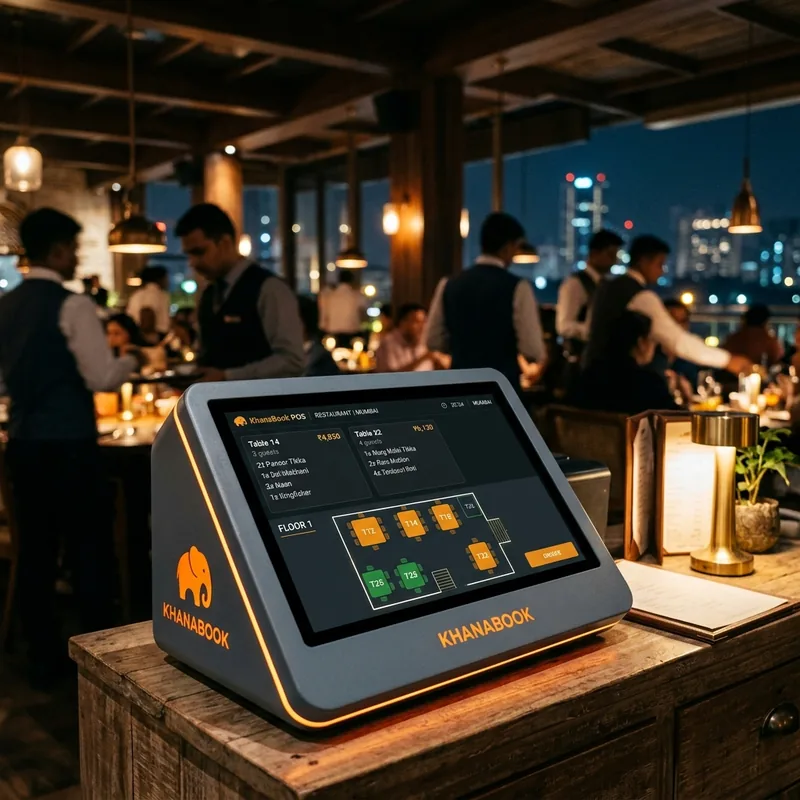
Hardware Setup
Connect up to two compatible Bluetooth thermal printers: one for receipts and one for KOTs.
- Printer compatibility
- Receipt and KOT tests
- Paper and battery checks
Payment Recording
Record cash, UPI, card and split payments so each mode remains clear in reports.
- Payment-mode recording
- Split payment flow
- Reference entry
Menu Photo Import
Use Android on-device OCR to suggest item names and prices from a menu photo, then review the suggestions before saving.
- Photo capture tips
- Reviewing extracted text
- Category mapping
Reports & Exports
Review supported sales, payment and item reports, then export available data as PDF or CSV.
- Daily and monthly sales
- Payment mix
- PDF and CSV exports
Setup guides.
Follow these guides to get your restaurant running on KhanaBook.
Setup Guides
- 1Confirm that each printer is compatible with KhanaBook before purchasing or configuring hardware.
- 2Turn on the Bluetooth thermal printer and place it in pairing mode.
- 3In Android Settings → Bluetooth, pair the printer with the device.
- 4Open KhanaBook, go to Settings → Printers, and select the paired device.
- 5Assign the printer as either the customer-receipt printer or the KOT printer. KhanaBook supports up to one printer for each role.
- 6Run the relevant test print and confirm that text, paper width and feed are correct.
- 1Start a new order and choose the appropriate order type, such as dine-in, takeaway or a manually recorded online order.
- 2Select menu items and review quantities, variants and configured taxes.
- 3Generate or update the KOT when the order should be sent to the kitchen.
- 4Follow the restaurant's pay-before or pay-after workflow, then record Cash, UPI, Card or a split across supported modes.
- 5Finalise the bill after reviewing its totals and payment record.
- 6Print the customer receipt on the assigned printer or create a PDF invoice for sharing through WhatsApp or SMS.
- 7The record remains available locally and becomes part of consolidated reporting after successful synchronisation.
- 1KhanaBook stores operational records locally so core billing, menu access and KOT printing can continue during temporary connectivity interruptions.
- 2Use the app's synchronisation indicator to check whether records are synced, pending or offline.
- 3When connectivity is available, eligible pending records synchronise automatically in the background.
- 4If a synchronisation attempt fails, the app can retry; continue checking the status until the pending record is confirmed as synced.
- 5Consolidated restaurant reports include a terminal's recent records only after successful synchronisation.
- 6Verify the sync status on every terminal regularly, especially before relying on end-of-day consolidated reports.
- 1Open Reports from the app navigation.
- 2Use the daily or monthly report for the supported date period you need.
- 3Review recorded payment modes such as Cash, UPI and Card for reconciliation.
- 4Use item-level reporting to compare menu-item sales.
- 5Use terminal-aware views to identify which terminal handled finalised sales after synchronisation.
- 6Export supported reports as PDF or CSV when you need to share or analyse the data outside KhanaBook.
- 7Confirm that all relevant terminals have synced before relying on consolidated totals.
Still need help?
Our support team is ready to assist with technical issues or billing questions.
Request a Demo
Speak with our sales team
Email Support
kbook@pcts.tech
Phone Support
+91 94716 76935 · Monday - Saturday, 9:00 AM - 8:00 PM IST
Join the KhanaBook community
Share tips, request features, and stay in the loop on what is coming next.
Join the communityCommon questions.
Search the most common setup and support questions below.